How Mia Works with WordPress: A Practical Setup Guide
A step-by-step tutorial to connect WordPress to Mia via the official MCP adapter — install the plugin, expose the endpoint, and let your AI assistant manage posts, pages, users, and plugins directly from chat.
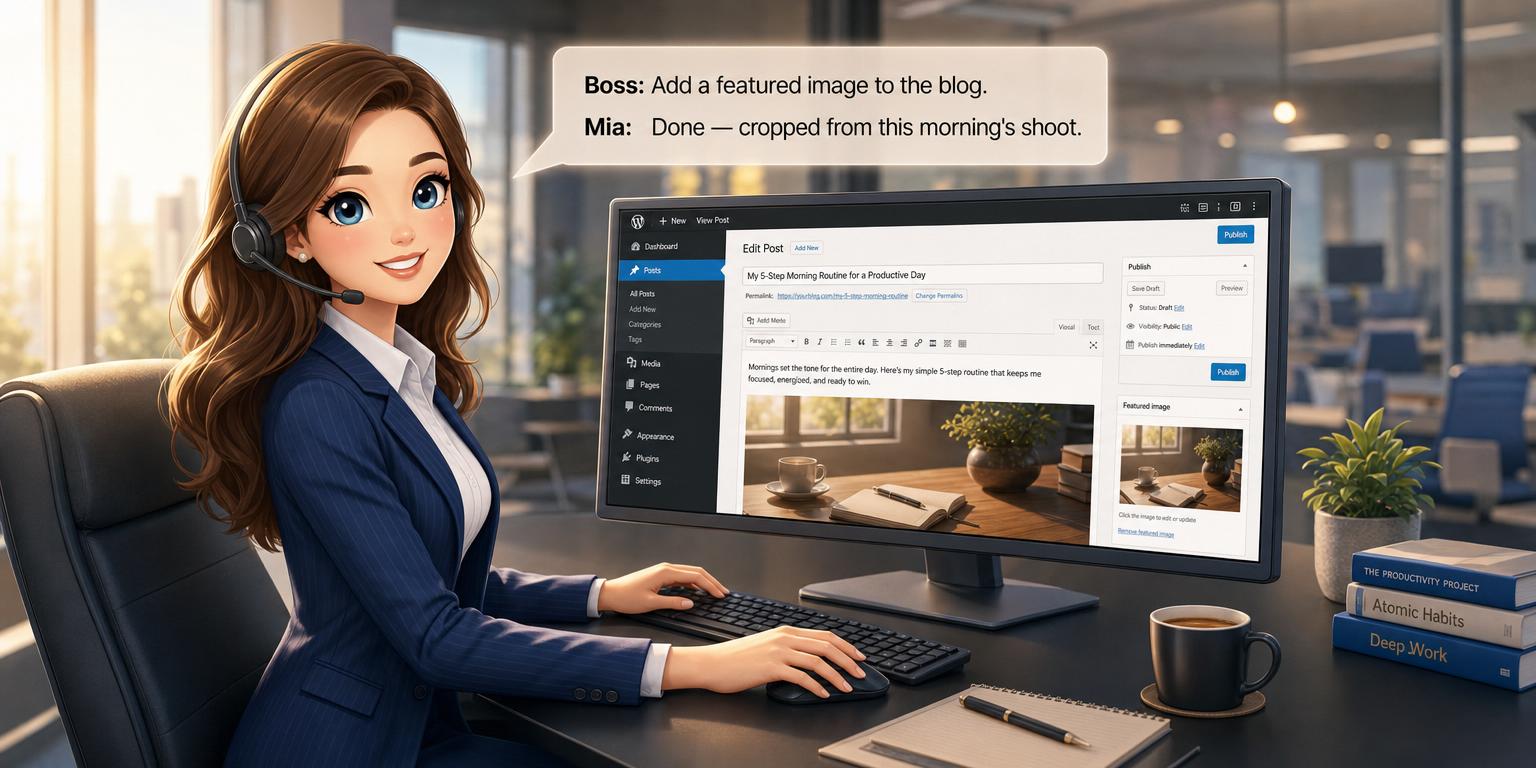
How Mia Works with WordPress: A Practical Setup Guide
WordPress powers more than 40% of the web — and with the Model Context Protocol (MCP), it now talks directly to Mia, your personal AI secretary. In this guide, we will walk through the full setup: from installing the official WordPress MCP adapter to connecting it with your Mia chat.
Once connected, you can ask Mia to publish posts, edit pages, pull analytics, manage users, and more — all from a single Telegram conversation. No browser tabs, no login screens, no context switching.
What is MCP and why should you care?
The Model Context Protocol is an open standard (originally introduced by Anthropic and now supported by OpenAI and Google) that lets AI agents communicate with external services through a structured, secure interface.
An MCP server exposes capabilities of a system. An MCP client (Mia) connects to that server and invokes those capabilities on your behalf.
For WordPress site owners, this means you can do things like:
- Ask Mia to create a draft, publish a post, or schedule content
- Edit a page heading or add a featured image
- List comments, tags, or media library files
- Trigger plugin-specific actions (SEO, e-commerce, forms)
- Query site analytics or pull performance reports
All from a single Telegram chat.
Prerequisites
Before you begin, make sure you have:
- A WordPress 6.x site (self-hosted, PHP 7.4+)
- Admin access to install plugins
- A Mia Handles account with at least a Standard plan (MCP connections require API access)
- An SSL certificate on your WordPress site (HTTPS is required for the MCP endpoint)
Step 1 — Install the official WordPress MCP adapter
The recommended plugin is mcp-adapter from the official WordPress GitHub organisation (GitHub.com/WordPress/mcp-adapter). It is the actively maintained successor to the older Automattic/wordpress-mcp.
From your WordPress admin panel:
- Go to Plugins → Add New
- Click Upload Plugin and choose the ZIP file from the GitHub release page — or install via Composer:
composer require wordpress/mcp-adapter
- Activate the plugin
- After activation, navigate to Settings → MCP Server (
/wp-admin/options-general.php?page=mcp-adapter)
There you will find:
- Endpoint URL — the public URL for the MCP endpoint (by default
https://yoursite.com/?mcp=1) - Authentication — token, basic auth, or application passwords (recommended: WordPress Application Password)
- Tools to expose — toggle which WordPress capabilities Mia can access (posts, pages, users, taxonomies, comments, plugins, REST API routes, etc.)
Step 2 — Generate an Application Password
WordPress supports dedicated Application Passwords for API integrations — perfect for MCP.
- Go to Users → Your Profile
- Scroll down to Application Passwords
- Give it a name, for example
Mia MCP - Click Add New Application Password
- Copy the generated password — you will only see it once
This password, combined with your WordPress username, becomes the credential pair Mia uses to connect.
Step 3 — Expose the endpoint securely
The MCP endpoint should only be reachable for services you trust. Typical options:
- Application Password auth — every request must carry the Basic-Auth header with the application credentials
- IP allowlist — restrict
/wp-admin/admin-post.php?mcp=1to Mia's backend IP - Private network / VPC — for enterprise setups
If your WordPress site is behind Cloudflare or another WAF, make sure the MCP path is allowed through with POST and GET methods, plus SSE if you use streaming. Test the endpoint first with curl (see Step 6) before connecting Mia.
Step 4 — Connect the WordPress server in Mia Handles
Now the fun part. In your Mia chat:
- Open the Mia miniapp (tap your profile picture or use the menu)
- Go to Settings → Integrations → Add MCP server
- Fill in the connection form:
Server name:   My WordPress Site
Endpoint URL:  https://yoursite.com/?mcp=1
Transport:     Streamable HTTP
Auth:          Basic auth
Username:      wp-admin
Password:      (paste the Application Password)
- Tap Connect. Mia will validate the endpoint, list available tools, and add the server to your chat.
You can also connect using a SSE or JSON POST transport — Mia supports all three.
Step 5 — Test the connection
Once connected, try a simple command in your Mia chat:
"List the last 5 draft posts on my WordPress site"
Mia should return a summary pulled directly from your site. If you get an error, check:
- Application Password validity
- MCP-adapter plugin is active and tools are enabled
- Endpoint URL is reachable from Mia's backend (firewall, SSL certificate)
You can also test manually with curl:
curl -u "wp-admin:APPLICATION_PASSWORD" \
  "https://yoursite.com/?mcp=1"
You should get a JSON tool list back — that means the server is alive.
Step 6 — What you can do after setup
Once connected, Mia becomes your co-pilot for WordPress. Here are the most common things you can do:
- Content operations — create drafts, publish/unpublish posts, edit pages, schedule content
- Media management — list, upload, or replace featured images
- Taxonomy & references — add categories, tags, custom fields
- Comments — list, moderate, reply, or batch-delete spam
- User management — create accounts, reset passwords, assign roles
- Plugin actions — trigger plugin-specific tools (SEO audits, analytics, form submissions)
- REST API queries — ask for any registered REST route
- Scheduled publishing — queue articles for future dates via Mia's todos or calendar
And because Mia already knows your calendar, tasks, and files, she can orchestrate WordPress work alongside the rest of your day — for example:
"Draft a new blog post with the interview transcript I sent you yesterday, schedule it for Friday at 10:00, and remind the editor to proofread it on Thursday."
Mia will handle all three in one go.
Troubleshooting
| Symptom | Likely cause | Fix |
|---|---|---|
| "Connection failed" | Endpoint blocked or wrong URL | Check firewall rules and SSL cert |
| "No tools available" | Plugin disabled or no tools toggled | Re-enable and select at least one tool |
| "Unauthorized" | Invalid Application Password | Regenerate in user profile and update in Mia |
| "HTTP 404" | Wrong endpoint path or permalink not flushed | Go to Settings → Permalinks → Save without changes |
| Slow responses | Too many tools enabled | Disable unused tools, enable pagination |
| CORS errors on browser | Browser MCP clients need CORS headers | Add header("Access-Control-Allow-Origin: *") only if you expose via custom route |
Related reading
The same MCP pattern works with other CMS platforms. Check out our companion guides:
- How Mia Works with Drupal: A Practical Setup Guide — covers the official
drupal/mcp_servermodule, Composer installation, and Drupal-specific use cases (entities, taxonomy, Views, moderation workflows). - Best AI Companion for Bitrix CMS: Connect Mia via MCP — covers the
hiweb.site_mcpmodule, bearer token auth, JSON POST transport, and Bitrix-specific use cases (iblocks, orders, CRM).
You can connect all three platforms to the same Mia chat, and she will address each by name.
Wrapping up
Connecting WordPress to Mia via MCP turns your CMS from a standalone dashboard into a conversational extension of your daily workflow. Once set up, it just works — quietly, in the background, whenever you need it.
If you have questions or want help setting it up, just ask Mia directly in chat. She already knows the protocol.